In Microsoft Word, a bookmark can be used to identify a location or group of text within a document that you can reference for future use. Adding a bookmark to a document effectively "ear-marks" the location or text selected and allows you to name this label or selection. Before creating a bookmark, it is wise to make bookmarks visible in Word's preferences. This can be done by clicking Office Button»Word Options then clicking the Advanced option. Under the Show document content section, make sure to check Show bookmarks as seen below.
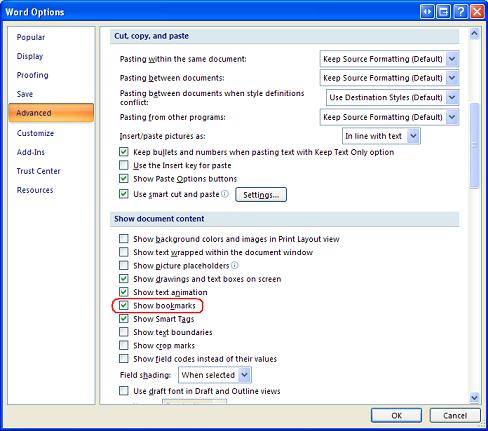
Figure 1: Word Advanced Options to Show Bookmarks
With this option selected, bookmarks will be shown enclosed by gray brackets. To add a bookmark to a word document follow these steps.
- Select the text you want to bookmark, or click the location you want to bookmark.
- Under the Insert tab click Bookmark.
- In the Bookmark Window that appears, name the bookmark you have just created and click Add.
Note: The bookmark name can contain numbers but must start with a letter. Also, spaces can not be included in the bookmark name, however underscores can be used to separate words.
If you have enabled bookmarks to be shown as described above, your bookmark will appear as shown below.
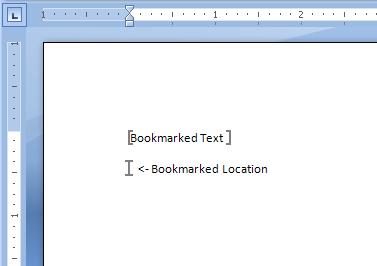
Figure 2: Examples of Bookmarked Text and Location
With your document bookmarked, you can now save this as a Microsoft Word Document Template. You can save to a Microsoft Word Document Template by clicking Office Button»Save As»Word Template. The document will save the as a .dotx file in the location you choose. This will allow you to create additional Microsoft Word Documents based off of the same design format.
Adding to Word Document Created from a Template
If you have a Word Document Template file, LabVIEW Report Generation Toolkit allows you to create a Word Document based on this template. The Create Report.vi can be used to create a new word document with a format based on the template's design.
Once the template is opened, content can be added to the bookmarked locations using the following VIs:
- Append Table to Report.vi
- Append List to Report.vi
- Append Front Panel Image to Report.vi
- Append Control Image to Report.vi
- Append Image to Report.vi
In the case of the Append List to Report.vi, the bookmark name can be directly entered as an input as seen below.
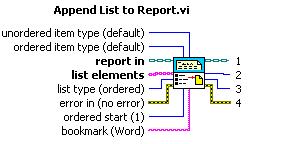
Figure 3: Append List to Report.vi Pin Characteristics
With all other Append to Report VIs, the bookmark name must be defined in the MS Office Parameters cluster. This cluster is made up of 4 values: Row, Column, Name, and Bookmark. The first three values are used for Excel documents and can be left blank.
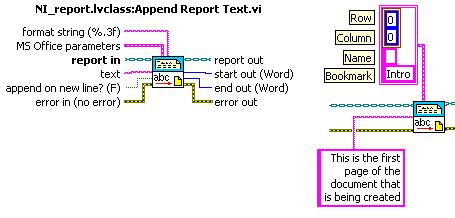
Figure 4: Append Report Text Pin Characteristics