What are UI Messages?
TestStand uses UI message objects to pass information about the state of the engine and the current executions to the Operator Interface or Sequence Editor. For example, the TestStand engine posts a UI message to notify the Operator Interface when a step has completed. The Operator Interface can then perform actions in response to this UI message, such as refreshing the execution window control to show updated step results.
Each UI message contains the following data relating to the execution event:
- message ID - indicates the type of message being sent
- Numeric data
- String data
- Object Reference data
In the Default TestStand UI Messages section of this article, More detail is provided on the UI messages sent by the Engine by default.
In some cases, you may need to notify the Operator Interface of additional execution events, or pass custom data to the User interface. To accomplish this, you can send custom UI messages using the TestStand API. Custom UI messages should have a message ID greater than the UIMsg_UserMessageBase constant (10000 by default). Possible applications of custom UI Message include:
- Passing information on the total number of units tested to the User interface once the test complete
- Passing specific numeric results from a test and append them to a graph on the UI.
This tutorial discusses details on posting UI messages using the TestStand API, as well as how to handle UI messages in a custom Operator Interface.
Why Use UI Messages?
UI messages are the best way to communicate between the TestStand User Interface and sequence files. The alternative of using a sequence file property or UI variable as a means to communicate (For example updating a file global from the sequence, then checking it's status in the user interface) creates unwanted dependencies between sequence files and the User Interface. UI messages are preferred for two reasons:
-
Independence of UI and sequence files - A User interface should always run with any sequence file, and vice versa. By using UI messages, there is no requirement that certain properties exist in sequence files when using them with the user interface. With UI messages:
-
the User interface can execute sequences that do not implement certain messages (the handling code in the User Interface simply never executes)
-
Sequences that post custom messages can be executed in a UI that is not built to handle them (the UI message is just ignored by the User Interface)
- Maintainability - UI messages avoid dependence on Sequence File Properties or UI variables, meaning less to maintain for developers of both sequence files and user interfaces
Default TestStand UI Messages
The TestStand engine automatically posts TestStand UI Messages to the Operator Interface at various points of execution to announce that various events have occurred. These messages are used by the User Interface to obtain information about the state of the execution. The TestStand engine defines several message types (specified by the message ID), and automatically posts UI messages when these events occur. These UI messages are defined in the TestStand help.
This document also provides details on when the message is posted, and what data is passed with the message, if any. These messages can also be posted manually using the TestStand API, discussed in more detail in the posting UI Messages section. Many default UI messages trigger events in the UI, but are never sent automatically by the TestStand engine.
The User Interface can be configured to execute code when particular UI messages occur. This process is discussed in detail in the Receiving and Handling UI Messages section of this article
Custom UI Messages
You can define your own custom UI messages by using a message ID that is greater than or equal to the value of the UIMsg_UserMessageBase constant (10,000). These messages are used in much the same way as default messages, but all functionality must be implemented by the developer:
- posting the message in the sequence file - the engine does not automatically post custom UI messages
- handling the message in the User Interface - the TestStand UI manager controls do not execute any code to handle custom messages by default.
These processes are discussed in detail in the next sections.
Posting UIMessages
To post a UI message, use one of the following two TestStand API methods:
- Thread.PostUIMessageEx method (typical) - Use this method when posting the UI message from a sequence. Uses the current thread and execution reference.
- Engine.PostUIMessage method - Use this method when not posting the message from a sequence. Note that this method is called directly on the engine. Unlike the previous method, you must specify an execution and thread reference when calling this method
These methods allow you to specify the message ID as well as the data associated with the message. The parameters of the PostUIMessageEx method is shown below:
PostUIMessageEx (eventCode, numericDataParam, stringDataParam, activeXDataParam, synchronous)
Note: the final parameter determines whether the method waits until the UI message is acknowledged by the user interface (typically the application manager UI control). Usually, this parameter is set to true to avoid possible message overflows, which can occur if messages are sent faster than they can be acknowledged by the UI
As with any TestStand API call, we can call the desired method in a few ways:
-
TestStand ActiveX step
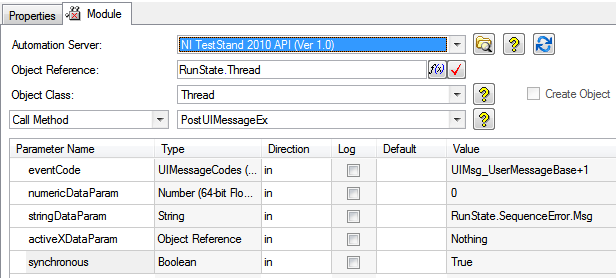
-
External code module - LabVIEW and LabWindows/CVI implementations are shown below
LabVIEW
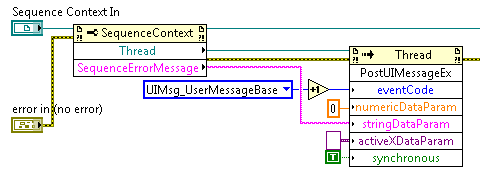
LabWindows/CVI
//get a reference to the current thread from sequence context
tsErrChk(TS_SeqContextGetThread(
    seqContext,
    &errorInfo,
    &threadRef));

//get the RunState.SequenceError.Msg property value
tsErrChk(TS_SeqContextGetRunTimeErrorMessageEx(
    seqContext,
    &errorInfo,
    &errorMessage,
    NULL,
    NULL));

//post the UI message
tsErrChk(TS_ThreadPostUIMessageEx(
    threadRef,
    &errorInfo,
    TS_UIMsg_UserMessageBase + 1,
    0,
    errorMessage,
    NULL,
    TRUE));
-
Statement step (TestStand 4.0 and later)
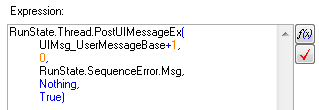
In this example, the current sequence error message (if there is one) is sent through the string parameter of the UI message. Note the use of the UIMsg_UserMessageBase parameter as part of the event code - adding this value ensures that this message will not conflict with a TestStand default UI message.
Whenever this step executes, the thread will post a custom UIMessage (ID 10,001) which passes the string value of Parameters.Result.Status. In the next section, we will discuss how to configure the user interface to handle UI messages.
Receiving and Handling UI Messages
Within the sequence editor or a TestStand Operator Interface, the Application Manager automatically acknowledges UI messages, and handles default UI message events. However, we can configure the operator interface to run user defined code when a UI message is handled by adding an event callback for one of two Application Manager events:
- UImessage event - this event is fired whenever any UI message is handled by the Application manager. The event callback specified will execute before any default UI message handling operations. The cancel output event argument can be set to True within the callback to override the default event operations
- UserMessage event - this event is fired only for custom UI messages (those with message ID of 10,000 or greater).
The implementations for handling custom UI messages in LabVIEW and LabWindows/CVI are explored in more detail in the next sections.
LabVIEW Implementation
In this section, we will modify the simple Operator Interface to handle the Custom UI message in the example above. The simple Operator Interface is located in the following directory:
<TestStand Public>\UserInterfaces\Simple\LabVIEW\TestExec.llb
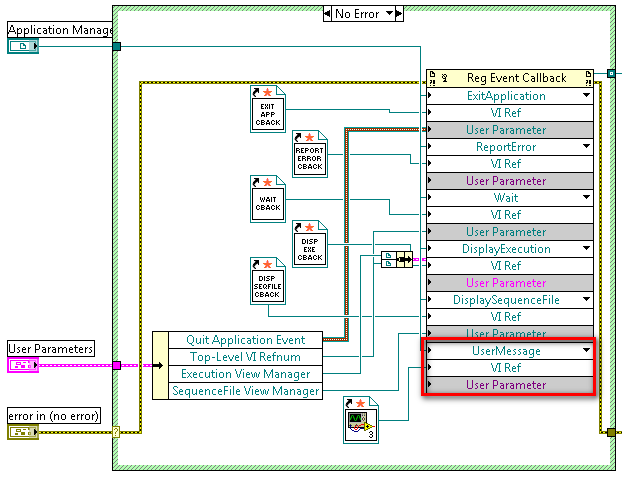
In the simple Operator Interface, the TestStand events are registered in the Simple OI - Configure Event Callbacks subVI. In this VI, we set what action to take when an event occurs by specifying a callback VI to run when the event occurs. Configuring the event handling callbacks is accomplished using the Register Event Callback Node .
To implement code to execute when a custom UI message is received, we first need to implement a callback VI for the UserMessage Event:
- Expand the Register event node to contain an additional event. You should see three additional inputs
- Wire the Application manager reference to the first new input. This specifies that we are handling an event of the Application Manager
- Left click the first input to select the User Message event from the list of Application Manager events
- Right-click the node of the second input (VI Ref), and select Create Callback VI from the context menu. This creates a new callback VI which runs whenever a custom UI message is received
- Pass any additional data to be used by the callback into the User Parameter node (in this case, no additional data is needed)
The Simple OI - Configure Event Callbacks VI with these modifications is shown below.
We now need to implement the code within the callback VI that should execute when the custom UI message is received:
- Open the callback VI created in step 4 above by double clicking it. Note that the parameters of the VI are created for you based on the event
- To access the UI message data, unbundle the Event Data parameter to access the uiMsg object, then create a property node from this object. This object represents the data of the UI message that fired the UserMessage event
- Since this event callback will run for any custom UI message, we first need to check the ID of the message. To do this, use the Event property as the selector data for a case structure. Add a case for the ID of the custom event (10001)
- Within the case structure, create the code to execute. In this case, we launch a dialog to display the error information sent within the UI message.
The completed callback VI is shown below.
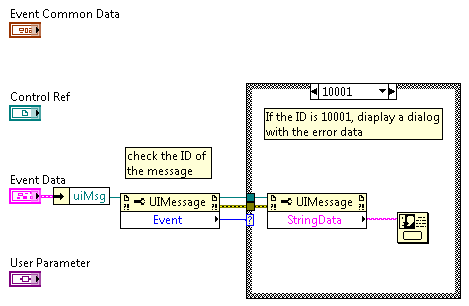
The modification is now complete, and the UI will now handle the custom UI message. To handle additional custom messages, simply add an additional case in the callback VI for each new UI Message ID.
LabWindows/CVI
In this section, we will modify the Simple Operator Interface to handle the Custom UI message in the example above. The simple Operator Interface is located in the following directory:
<TestStand Public>\UserInterfaces\Simple\CVI\TestExec.cws
In the simple Operator Interface, the TestStand events are registered in the SetupActiveXControls() function. In this function, we set what action to take when various events occur by calling event registration functions. Each event type has a separate function associated with it; to handle the User message event, we use the following function:
errChk( TSUI__ApplicationMgrEventsRegOnUserMessage(gMainWindow.applicationMgr, ApplicationMgr_OnUserMessage, NULL, 1, NULL));
This function configures a callback function to execute when a user message is received. It requires five parameters:
- The object that handles the event - in this case, the application manager
- The callback function to execute when the event occurs - we need to create the function specified here (ApplicationMgr_OnUserMessage)
- Callback data - any additional data needed in the callback function - in this case, nothing is needed
- Enable callbacks - sets whether to link the callback to the event immediately. In most cases, this should be set to 1, or true
- (return parameter) callback ID - use this parameter to access the unique ID of the callback. This data is not needed for this tutorial
This function should be inserted with the other event registration functions (lines 277-281). Documentation for this and other TestStand API functions is provided in the CVI function panel.
We now need to implement the code within the callback function that should execute when the custom UI message is received. The prototype of this function is provided in the documentation for the registration function above.
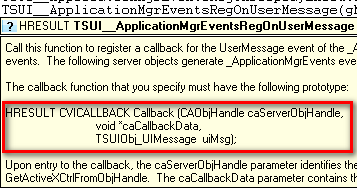
The completed callback function is written below. The comments provide more detail on each call.
HRESULT CVICALLBACK ApplicationMgr_OnUserMessage (
CAObjHandle caServerObjHandle,
void *caCallbackData,
TSUIObj_UIMessage  uiMsg)
{
    char *stringData;
    enum TSEnum_UIMessageCodes messageID;
    int error = 0;

    //obtain message ID from UI message object
   tsErrChk(TS_UIMessageGetEvent(
                 uiMsg,
                 &errorInfo,
                 &messageID));

    switch (messageID)
    {
         case 10001:
         //run only for this message type (ID 10001)

           //get the UI message string data
           tsErrChk(TS_UIMessageGetStringData(
                 uiMsg,
                 &errorInfo,
                 &stringData));

            //display the string data to the user
            MessagePopup("Sequence Error",stringData);
        break;
    }
    Error: //handle errors (same as other callbacks)
       DisplayError(error);
       return error < 0 ? E_FAIL : S_OK;
}
The modification is now complete, and the UI will now handle the custom UI message. To handle additional custom messages, simply add an additional case in the callback function for each new UI Message ID.
The modified TestExec.c file can be found in the attachments.