Python Adapter
Starting with TestStand 2019, NI offers the Python Adaptor. Earlier versions of TestStand can use Python Step Types for TestStand - see below.
The Python Adapter allows Python scripts to be incorporated into new or existing test systems. The adapter is built on the same design principles as other adapters, providing a development experience familiar to existing TestStand developers.
The adapter supports all the existing standard step types, like Action, String Value, Pass/Fail, Numeric and Multi-Numeric Limit Test steps. Interpreter management options are integrated directly into the Sequence Editor to control how your Python code executes. This allows for the most seamless experience calling Python scripts from TestStand of the options available.
Supported Features:
- Execute Python scripts (.py) on disk by:
- Calling a function defined in a module.
- Getting/Setting the attributes defined in a module.
- Creating a class instance.
- Calling a member function or static function defined in the class.
- Getting/Setting member attributes or static attributes defined in the class.
- Execute Python scripts in Python versions 2.7 or 3.6+ (for later editions, ensure to use the most recent version of TestStand for full functionality).
- Execute Python scripts out-of-process in the CPython interpreter.
- Convert data between Python and TestStand variables.
- Store/reuse the Python object in a TestStand variable (Object Reference).
You can also use multiple Python interpreter sessions to perform the following tasks:
- Execute Python scripts in parallel.
- Use multiple Python versions, such as 2.7 and 3.6, simultaneously in TestStand.
To learn more about the Python Adapter, please refer to TestStand Help: Python Adapter .
Python Step Types for TestStand
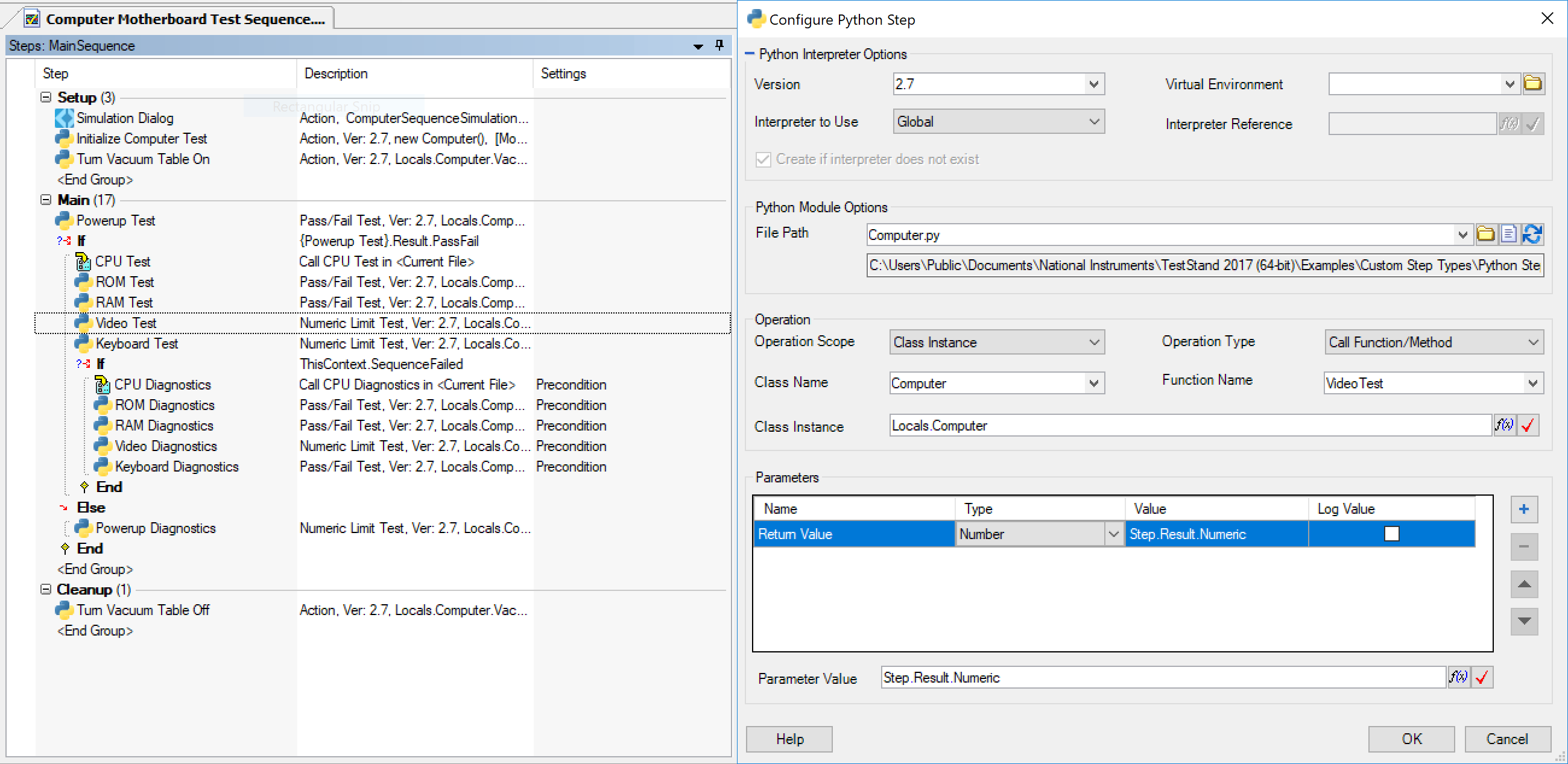
For TestStand 2014-2017, NI offers the Python Step Types for TestStand, a software add-on to specify and execute Python scripts from a TestStand sequence. The Python Step Types offer a similar feature set to that of the Python Adapter without the deeper integration into the environment that the adapter offers.
These steps provide a more familiar way to interface with Python scripts compared to the Call Executable Step. When dropping a step, you will be presented with a configuration dialog that allows you to control interpreter options, function selection, and data passing.
If you are using other scripting languages or want to interface with Python through the command-line with the Call Executable Step, continue reading below.
Call Executable Step
TestStand has the ability to call your scripts written in languages such as Perl, Python and Tcl using the Call Executable step type. In particular, TestStand can pass data in and out of scripts as well as access the script’s error information.
- Passing Data to Scripts:
Developers can pass data from TestStand to their scripts either through command-line arguments or directly through the Standard Input stream. Using the Standard Input stream allows developers to reuse scripts that traditionally took user input from the keyboard during run-time, and run it in an automated fashion from TestStand. - Accessing Output in TestStand:
Once the execution of the script is complete, anything that the script wrote to the Standard Output can be accessed from the TestStand sequence. This will enable developers to base the status of a step on the result of a script. - Accessing Script Errors in TestStand:
If an error occurred during execution of the script, the error information is also available to TestStand through the Standard Error stream. This enables developers to handle the error appropriately.
What this means is that developers can effectively utilize the full power of their scripts by taking advantage of the hooks that TestStand provides to the executable’s Standard Input (stdin), Standard Output (stdout) and Standard Error (stderr).
Calling a Simple Script from TestStand Using Call Executable Step
Fundamentals
If you are new to scripting or don’t have an interpreter installed, please refer to Part 1 of the series Introduction to Scripting in Perl, Python and Tcl .
If you are looking to call scripts from LabVIEW instead of NI TestStand, you can use the System Exec VI. For a tutorial, refer to Call Perl and Python Scripts from LabVIEW .
To call a script from TestStand you will need the following:
- A script to call (we will use examples in Perl, Python and Tcl)
- An interpreter for the scripting language you choose
- The NI TestStand Sequence Editor (or an Operator Interface that allows you to modify sequences)
The Script: HelloWorld
The script used in this example is a simple HelloWorld script that will simply write “Hello World!” to the Standard Output stream.
Note: You can download any of the script files by clicking on their filename above the code snippets.
Perl: HelloWorld.pl
#!/usr/bin/perl -w
use strict;

print "Hello World!\n";


Python: HelloWorld.py
#!/usr/bin/env python

print "Hello World!"


Tcl: HelloWorld.tcl
#!/bin/sh
# -*- tcl -*-

# The next line is executed by /bin/sh, but not tcl \
exec tclsh "$0" ${1+"$@"}

puts "Hello World!";
Calling the HelloWorld Script from TestStand
The process of calling a script from TestStand is very similar to calling it from the Windows command line. In fact, all you have to do is use the Call Executable step and specify the path and file for the script you want to execute. (The reason this works is that we associated the script file extension with the appropriate interpreter. If you haven’t associated the script file with a particular interpreter, you will have to specify the interpreter as the executable and pass in the script file as a command-line argument).
- Open the NI TestStand Sequence Editor and a new sequence file.
- Add a Call Executable step and rename it “Call HelloWorld Script”.
- On the Step Settings pane, switch to the Call Settings tab.
- Specify the name of the script you want to call in the File PathName
Perl: HelloWorld.pl
Python: HelloWorld.py
Tcl: HelloWorld.tcl
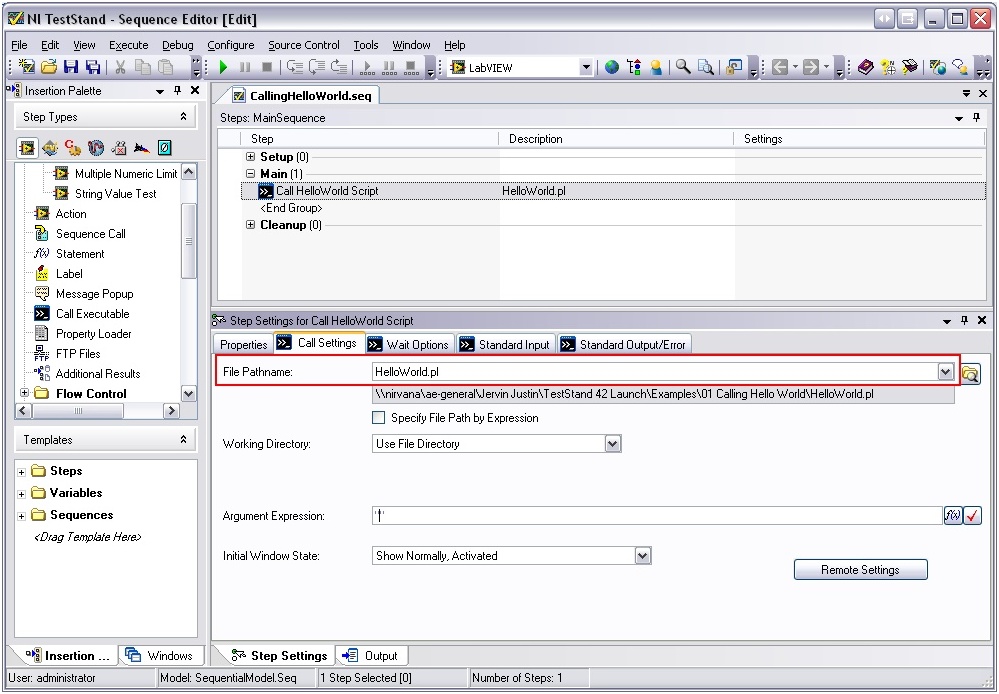
- Save the sequence file as CallingHelloWorld.seq in the same folder as the script.
- Run your sequence file. Your report should say that the test passed and that the Call Executable script had an ExitCode of 0, which indicates success.
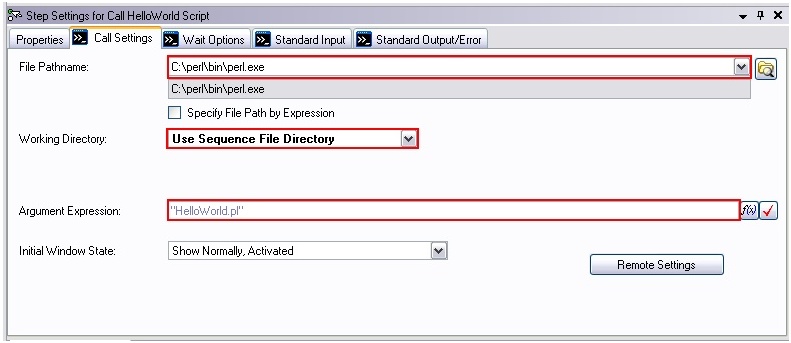
Note: If you haven’t associated the script file’s extension with the appropriate interpreter, you will have to call the interpreter directly from the Call Executable step and pass in the script as a command-line argument. See the following screenshot for an example:
Accessing Script Outputs from TestStand: Standard Output
Most programming languages define a standard output stream that programs can write their output to. While this standard output stream (stdout) defaults to the terminal (monitor), NI TestStand gives you the ability to access the standard output stream from the Call Executable Step type.
In the following example, you will learn how to use the previous Hello World example and modify it so that you can write the output of the script to your TestStand report.
Accessing the Standard Output Stream from TestStand
We will use the same HelloWorld script and continue from the same sequence CallingHelloWorld sequence that you created in the previous section, Calling a Simple Script from TestStand.
- Open the sequence file CallingHelloWorld.seq.
- Highlight the “Call HelloWorld Script” step.
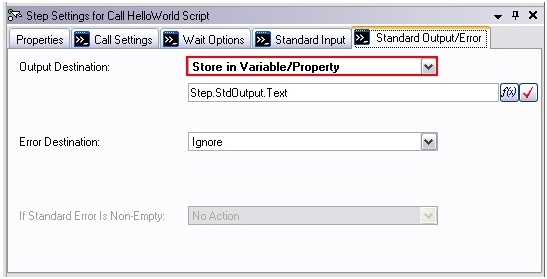
- On the Step Setting pane, switch to the Standard Output/Error tab.
- On the Output Destination combo box, pick Store in Variable/Property.
Leave the default value, i.e., Step.StdOutput.Text.
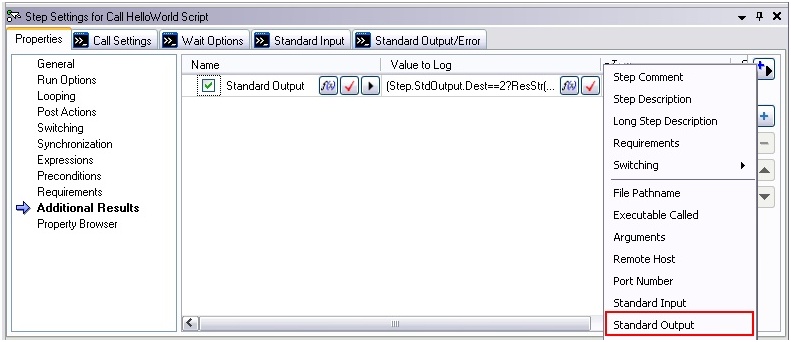
- On the Step Settings pane, switch to the Properties tab and select the Additional Results category.
- Click the Add Result from List button and select Standard Output. This will include the stdout stream in the report.
- Save the sequence file as CallingHelloWorldWithStdOut.seq in the same folder as the script.
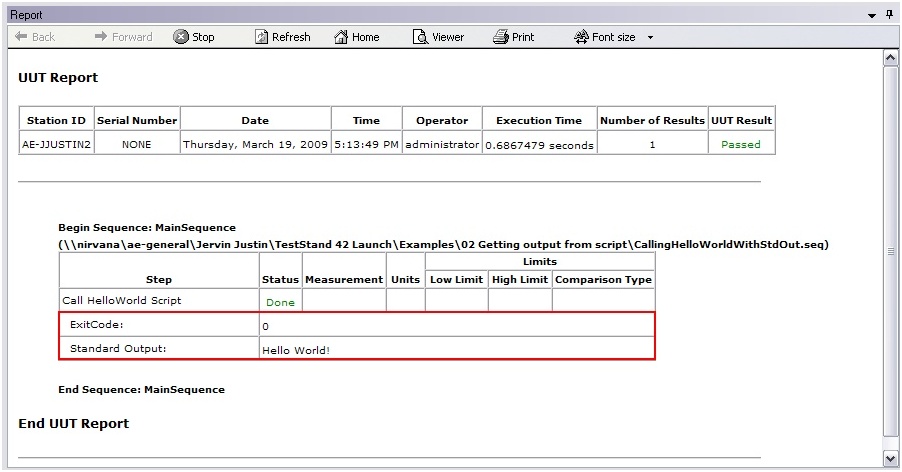
- Run your sequence file. Your report should look like the following screenshot:
Passing Data to Scripts from TestStand: Command Line
Most programming languages allow you to pass data to them when you launch them through command line arguments – extra parameters that you type in after the name of the script on the command line. TestStand’s Call Executable step allows you to pass parameters to your scripts in this method.
The Script: AddNumbersCommandLine
This is a fairly basic script that will accept a series of numbers as command-line arguments and writes their sum to the standard output stream.
Perl: AddNumbersCommandLine.pl
#!/usr/bin/perl –w
use strict;

#Command Line Arguements are stored in list @ARGV
my $numArgs = $#ARGV + 1;
my $sum = 0;

#Iterate through each element and add to the sum
foreach my $currentNumber (@ARGV)
{
    $sum += $currentNumber;
}

print "Sum: ", $sum, "\n";
Python: AddNumbersCommandLine.py
#!/usr/bin/env python
import sys

#Command Line Arguements are stored in list argv
numArgs = len(sys.argv) - 1

sum = 0

#Iterate through each element and add to the sum
for n in range (1, len(sys.argv)):
    sum = sum + int(sys.argv[n])

print "Sum:", sum, "\n"
Tcl: AddNumbersCommandLine.tcl
#!/bin/sh
# -*- tcl -*-
# The next line is executed by /bin/sh, but not tcl \
exec tclsh "$0" ${1+"$@"}

#Command Line Arguements are stored in list argv
set numArgs $argc
set sum 0

#Iterate through each element and add to the sum
foreach currentNumber $argv {
    set sum [expr $sum + $currentNumber]
}

puts "Sum: $sum\n"
Passing Command Line Arguments from TestStand
All you need to do in order to pass Command Line Arguments from TestStand to a script is to include the parameters you want to pass in the Argument Expression field of the Call Executable step.
- Create a new sequence file.
- Add a Call Executable step and name it “Call AddNumbersCommandLine Script”.
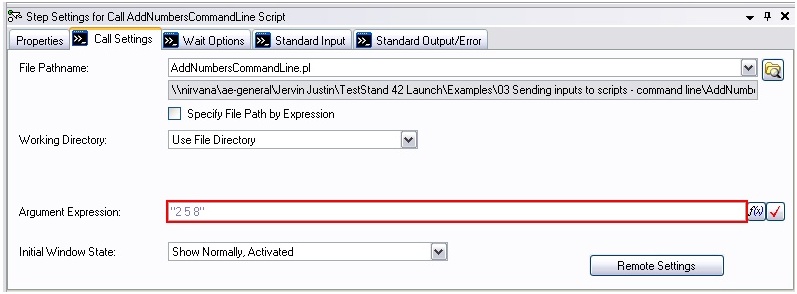
- On the Step Settings pane, switch to the Call Settings tab.
- Point the File Pathname field to the appropriate AddNumbersCommandLine script.
- For the Argument Expression field, enter in a series of numbers enclosed in double-quotes. For example:
“2 5 8”
- Switch to the Standard Output tab and store the output in the Variable/Property Step.StdOutput.Text.
- On the Step Settings pane, switch to the Properties tab and select the Additional Results category.
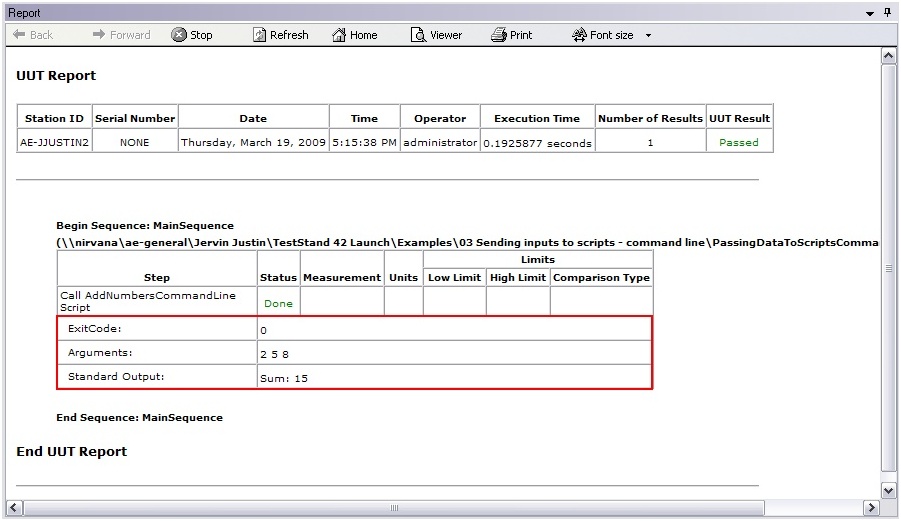
- Click the Add Result from List button and select Arguments. This will include the command line arguments in the report.
- Click the Add Result from List button and select Standard Output. This will include the stdout stream in the report.
- Save the sequence file as PassingDataToScriptsCommandLine.seq in the same folder as the script.
- Run your sequence file. Your report should look like the following screenshot:
Passing Data to Scripts from TestStand: Standard Input
Most programming languages also define a standard user input stream that programs can read from during execution. While this standard input stream (stdin) defaults to the keyboard, NI TestStand gives you the ability to access the standard input stream from your sequence. This gives developers more flexibility as your scripts can read these values during run-time rather than right when they begin execution.
The Script: AddNumbersStdIn
Perl: AddNumbersStdIn.pl
#!/usr/bin/perl -w
use strict;

print "Enter numbers (separate with commas): ";

#Get input as a string
my $numbersAsString = <STDIN>;
#Parse the numbers into a list
my @numbers = split(/, | |,/,$numbersAsString);

my $sum = 0;

#Iterate through the list and add to the sum
foreach my $currentNumber (@numbers)
{
    $sum += $currentNumber;
}

print "Sum: ", $sum, "\n";
Python: AddNumbersStdIn.py
#!/usr/bin/env python

#Get input as a list
numbers = raw_input('Enter numbers (separate with commas): ')

sum = 0

#Iterate through the list and add to the sum
for currentNumber in numbers:
    sum = sum + currentNumber

print "Sum:", sum, "\n"
Tcl: AddNumbersStdIn.tcl
#!/bin/sh
# -*- tcl -*-
# The next line is executed by /bin/sh, but not tcl \
exec tclsh "$0" ${1+"$@"}

puts "Enter numbers (separate with commas): "
#Get input as a string
gets stdin numbersAsString
#Parse the numbers into a list
set numbers [split $numbersAsString ,]

set sum 0

#Iterate through the list and add to the sum
foreach currentNumber $numbers {
    set sum [expr $sum + $currentNumber]
}

puts "Sum: $sum\n"
Passing Data through the Standard Input from TestStand
All you need to do in order access the standard input stream from TestStand is to enable an Input Method on the Standard Input tab of the Call Executable step.
- Create a new sequence file.
- Add a Call Executable step and name it “Call AddNumbersStdIn Script”.
- On the Step Settings pane, switch to the Call Settings tab.
- Point the File Pathname field to the appropriate AddNumbersStdIn script.
- On the Step Settings pane, switch to the Standard Input tab.
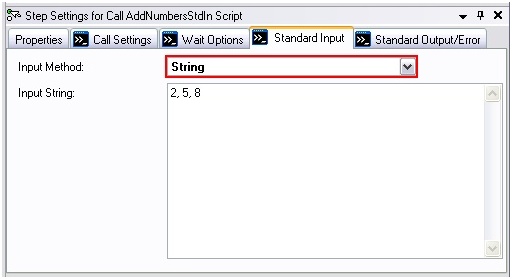
- Switch the Input Method combo box to String, and enter in a series of numbers separated by commas. For example:
2, 5, 8
- Switch to the Standard Output tab and store the output in the Variable/Property Step.StdOutput.Text.
- On the Step Settings pane, switch to the Properties tab and select the Additional Results category.
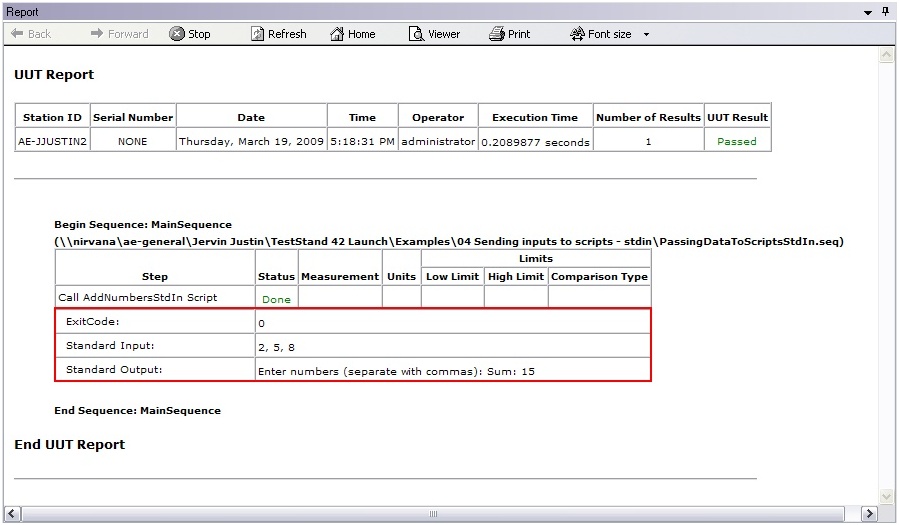
- Click the Add Result from List button and select Standard Input. This will include the stdin stream in the report.
- Click the Add Result from List button and select Standard Output. This will include the stdout stream in the report.
- Save the sequence file as PassingDataToScriptsStdIn.seq in the same folder as the script.
- Run your sequence file. Your report should look like the following screenshot:
Evaluating Script Results: Pass/Fail Test using Status Expression
The earlier topics discussed how to get the output of a script into TestStand using the Standard Output stream. Once you have this data in your sequence, NI TestStand gives you the ability to base the result of your sequence based on this output. One way to do this is to modify the Status Expression of the Call Executable step.
The Script: IsVoltageInRange
This simple script takes in a range as an input (minimum and maximum) through the standard input stream. It then compares a simulated voltage which is hardcoded to 5V to the range and prints “Result: True” or “Result: False” to the standard output.
Perl: IsVoltageInRange.pl
#!/usr/bin/perl -w
use strict;

#Simulated Voltage
my $voltage = 5;

#Get Range
print "Enter range (separate with commas): ";
my $numbersAsString = <STDIN>;
my @numbers = split(/, | |,/,$numbersAsString);

my $min = $numbers[0];
my $max = $numbers[1];

if ($voltage >= $min && $voltage <= $max)
{
    print "Result: True\n"
}
else
{
    print "Result: False\n"
}
Python: IsVoltageInRange.py
#!/usr/bin/env python

#Simulated Voltage
voltage = 5

#Get Range
numbers = input('Enter range (separate with commas): ')

min = numbers[0]
max = numbers[1]

if voltage > min and voltage <= max:
    print "Result: True\n"
else:
    print "Result: False\n"
Tcl: IsVoltageInRange.tcl
#!/bin/sh
# -*- tcl -*-
# The next line is executed by /bin/sh, but not tcl \
exec tclsh "$0" ${1+"$@"}

#Simulated Voltage
set voltage 5

#Get Range
puts "Enter range (separate with commas): "
gets stdin numbersAsString
set numbers [split $numbersAsString ,]

set min [lindex $numbers 0]
set max [lindex $numbers 1]

if {$voltage >= $min && $voltage <= $max} {
    puts "Result: True\n"
} else {
    puts "Result: False\n"
}
Evaluating Output in TestStand using Status Expression
Since you know that the script is going to return either “Result: True” or “Result: False”, you can use a status expression to parse for this string in the standard output stream and set the step status based on the output.
- Create a new sequence file.
- Add a Call Executable step and name it “Pass/Fail Test: IsVoltageInRange (Pass)”.
- On the Step Settings pane, switch to the Call Settings tab.
- Point the File Pathname field to the appropriate IsVoltageInRange script.
- On the Step Settings pane, switch to the Standard Input tab.
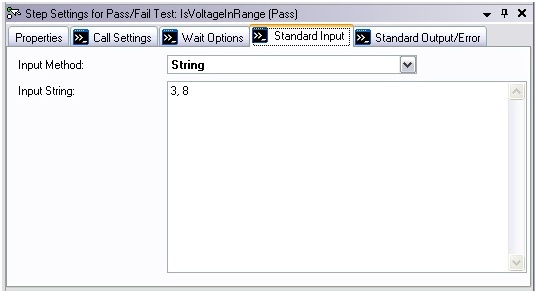
- Switch the Input Method combo box to String, and enter in a range that will pass separated by commas. For example:
2, 8
- Switch to the Standard Output tab and store the output in the Variable/Property Step.StdOutput.Text.
- Create a Boolean local variable named Locals.isVoltageInRage.
- On the Step Settings pane, switch to the Properties tab and select the Expressions category.
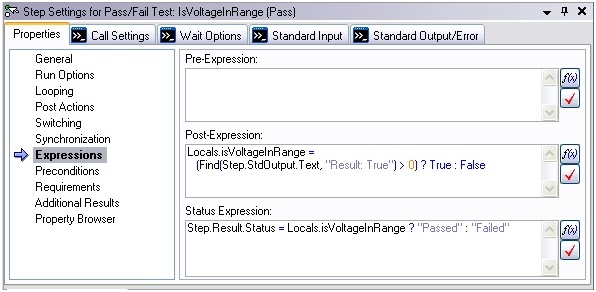
- Enter the following Post-Expression to parse the standard output:
Locals.isVoltageInRange =
(Find(Step.StdOutput.Text, "Result: True") > 0) ? True : False - Enter the following Status-Expression to set the result of the step:
Step.Result.Status = Locals.isVoltageInRange ? "Passed" : "Failed"
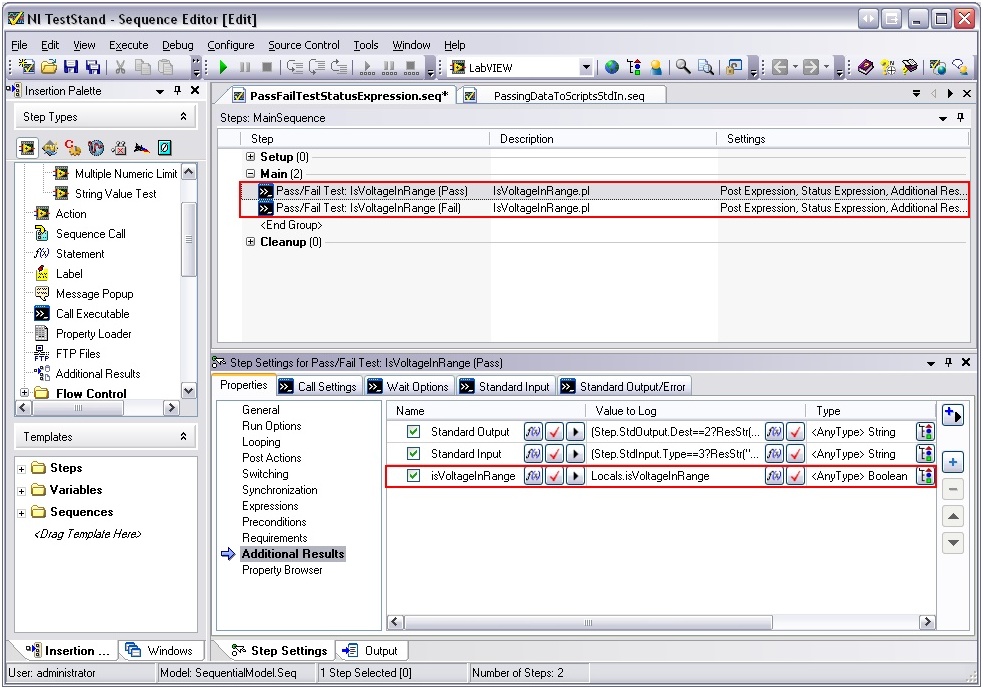
- On the Additional Results category, enable Standard Input and Standard Output using the Add Result From List button. This will include the stdin and stdout stream in the report.
- Click the Add Custom Result button and enter in “isVoltageInRange” as the Name and “Locals.isVoltageInRange” as the Value to Log. Make sure the Type reads Boolean.
- Now create a copy of the step and insert it right after the original step. Name the copy “Pass/Fail Test: IsVoltageInRange (Fail)”.
Modify the Standard Input in this step to cause a fail condition. For example:
3, 4
- Save the sequence file as PassFailTestStatusExpression.seq in the same folder as the script.
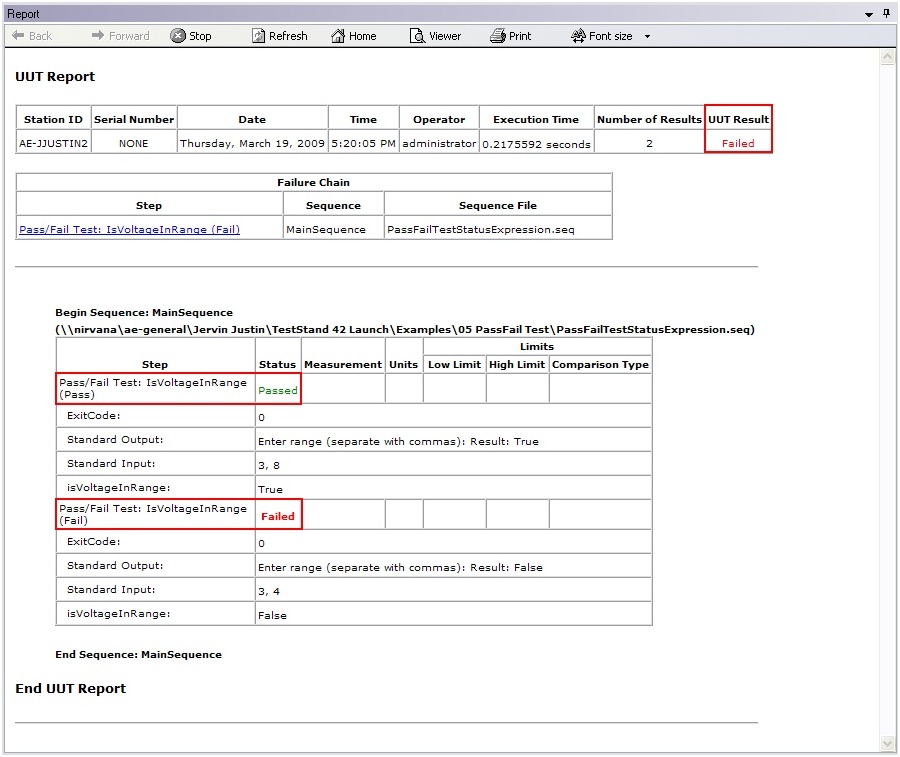
- Run your sequence file. Your report should look like the following screenshot:
Evaluating Script Results: Numeric Limit Test using <None> Adaptor
The earlier topics discussed how to get the output of a script into TestStand using the Standard Output stream. Once you have this data in your sequence, NI TestStand gives you the ability to base the result of your sequence based on this output. One way to do this is to use Test Step with a <None> Adaptor after the script to evaluate the script’s output.
The Script: GetVoltage
This script simply creates simulated voltage reading which is hardcoded to 5V to the range and prints “Voltage: <voltage>” to the standard output.
Perl: GetVoltage.pl
#!/usr/bin/perl -w
use strict;

#Simulated Voltage
my $voltage = 5;

print "Voltage: " , $voltage, "\n"
Python: GetVoltage.py
#!/usr/bin/env python

#Simulated Voltage
voltage = 5

print "Voltage:", voltage, "\n"
Tcl: GetVoltage.tcl
#!/bin/sh
# -*- tcl -*-
# The next line is executed by /bin/sh, but not tcl \
exec tclsh "$0" ${1+"$@"}

#Simulated voltage
set voltage 5

puts "Voltage: $voltage\n"
Evaluating Output in TestStand using <None> Adaptor
Since you know that your script is going to return either the voltage in the format “Voltage: <voltage>, you can use a status expression to parse for this string in the standard output stream and set a local variable to this value. Then, you can use a Numeric Limit Test with a <None> Adaptor to test the output.
- Create a new sequence file.
- Add a Call Executable step and name it “GetVoltage”.
- On the Step Settings pane, switch to the Call Settings tab.
- Point the File Pathname field to the appropriate GetVoltage script.
- On the Step Settings pane, switch to the Standard Input tab.
- Switch to the Standard Output tab and store the output in the Variable/Property Step.StdOutput.Text.
- Create a numeric local variable named Locals.voltage.
- On the Step Settings pane, switch to the Properties tab and select the Expressions category.
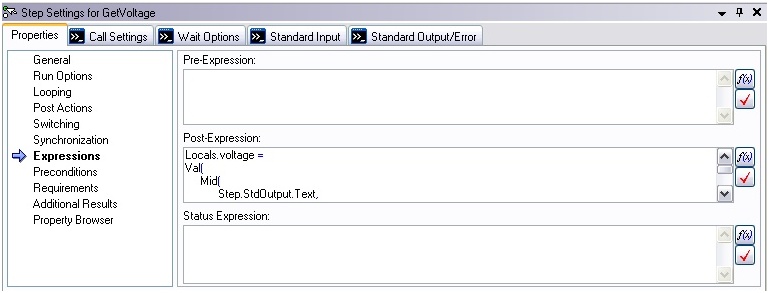
- Enter the following Post-Expression to parse the standard output:
Locals.voltage =
Val(
Mid(
Step.StdOutput.Text,
Find(Step.StdOutput.Text, "Voltage: ") + Len("Voltage: "),
Find(Step.StdOutput.Text, "\n", Find(Step.StdOutput.Text, "Voltage: "))
- (Find(Step.StdOutput.Text, "Voltage: ")) + Len("Voltage")
)
)
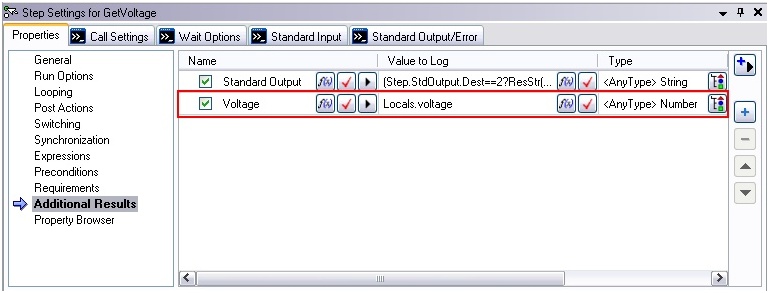
- On the Additional Results category, enable Standard Output using the Add Result From List button. This will include the stdout stream in the report.
- Click the Add Custom Result button and enter in “Voltage” as the Name and Locals.voltage as the Value to Log. Make sure the Type reads Number.
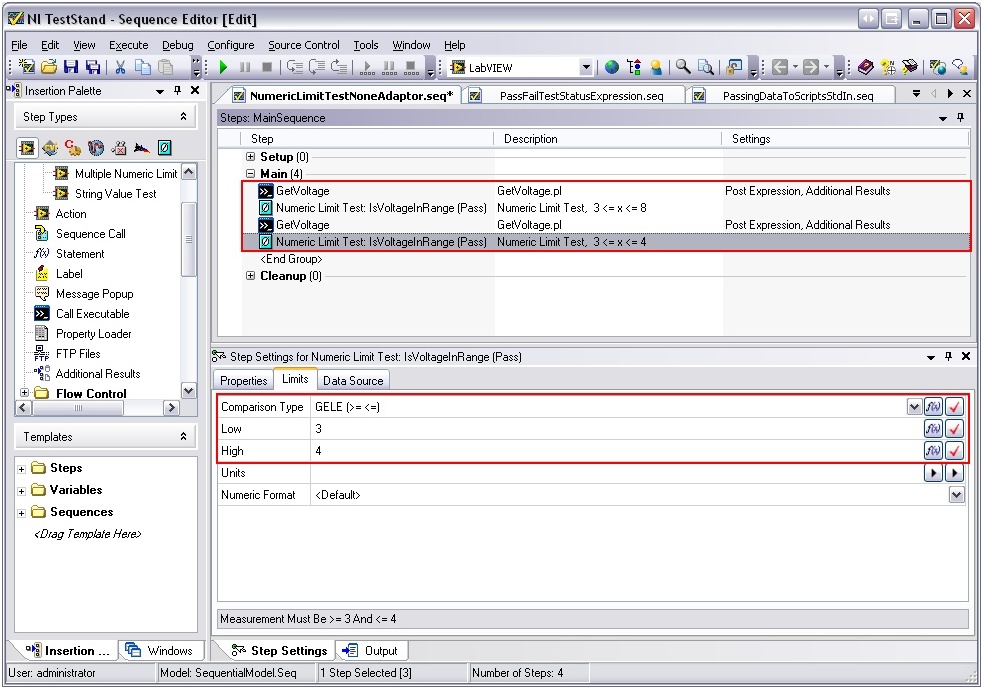
- Now pick <None> from the Adaptor dropdown list and a Numeric Limit Test step. Name the step “Numeric Limit Test: IsVoltageInRange (Pass)”.
- Set the Data Source for this step to Locals.voltage.
- Set the Limits of the step to a range that covers 5 so that the test will pass. For example:
Low: 3
High: 8 - Now create a copy of the two steps and insert them right after the original steps. Name the copy of the Numeric Limit Test “Numeric Limit Test: IsVoltageInRange (Fail)”.
Modify the Limits on this step to cause a fail condition. For example:
Low: 3
High: 4
- Save the sequence file as NumericLimitTestNoneAdaptor.seq in the same folder as the script.
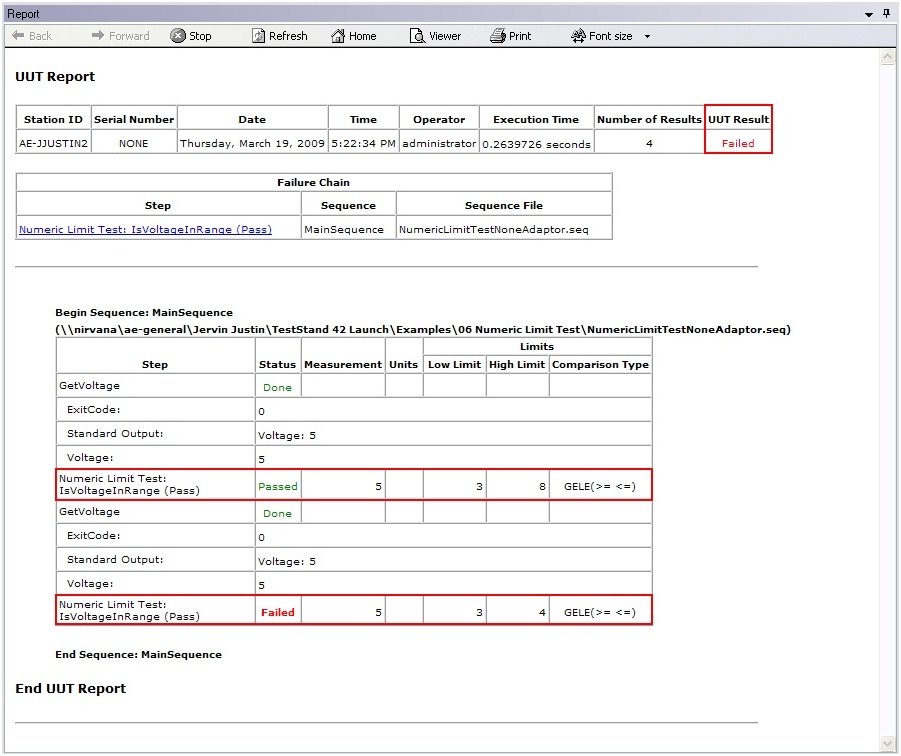
- Run your sequence file. Your report should look like the following screenshot:
Handling Script Errors in TestStand
Finally, NI TestStand also gives you access to the Standard Error (stderr) stream. Anytime an error occurs in your Perl, Python or Tcl scripts, they will write out to this stream. Using this, you can handle any errors eloquently in your TestStand sequence.
The Script: AddNumbersWithErrorHandling
This is a modified version of our AddNumbersStdIn script that will check to make sure that all the inputs were numeric values; otherwise it will throw an error, write to the stderr stream and exit with ExitCode -1.
Perl: AddNumbersWithErrorHandling.pl
#!/usr/bin/perl -w
use strict;

print "Enter numbers (separate with commas): ";
my $numbersAsString = <STDIN>;
my @numbers = split(/, | |,/,$numbersAsString);

my $sum = 0;
foreach my $currentNumber (@numbers)
{
    die("Input is not a number!, stopped") unless ($currentNumber =~ /^\d+$/);
    $sum += $currentNumber ;
}

print "Sum: ", $sum, "\n";
Python: AddNumbersWithErrorHandling.py
#!/usr/bin/env python
import sys

try:
    numbers = input('Enter numbers (separate with commas): ')
except:
    print >> sys.stderr, 'Input is not a number!'
    sys.exit(-1)

sum = 0
for currentNumber in numbers:
    sum = sum + currentNumber

print "Sum:", sum, "\n"
Tcl: AddNumbersWithErrorHandling.tcl
#!/bin/sh
# -*- tcl -*-
# The next line is executed by /bin/sh, but not tcl \
exec tclsh "$0" ${1+"$@"}

puts "Enter numbers (separate with commas): "
gets stdin numbersAsString

set numbers [split $numbersAsString ,]

set sum 0
foreach currentNumber $numbers {
    if ![string is integer -strict $currentNumber] {
        #error "Input is not a number!"
        puts stderr "Input is not a number!"
        return -1
    }
    set sum [expr $sum + $currentNumber]
}

puts "Sum: $sum\n"
Handling Script Errors in TestStand
TestStand makes it easy not only to access the Standard Error stream in our sequence, but also makes it easy to make decisions based on the contents of this stream and eloquently handle any errors.
- Create a new sequence file.
- Add a Call Executable step and name it “Call AddNumbers Script (Correct Input)”.
- On the Step Settings pane, switch to the Call Settings tab.
- Point the File Pathname field to the appropriate AddNumbersWithErrorHandling script.
- On the Step Settings pane, switch to the Standard Input tab.
- Switch the Input Method combo box to String, and enter in a series of numbers separated by commas. For example:
2, 5, 8 - Switch to the Standard Output tab and store the output in the Variable/Property Step.StdOutput.Text.
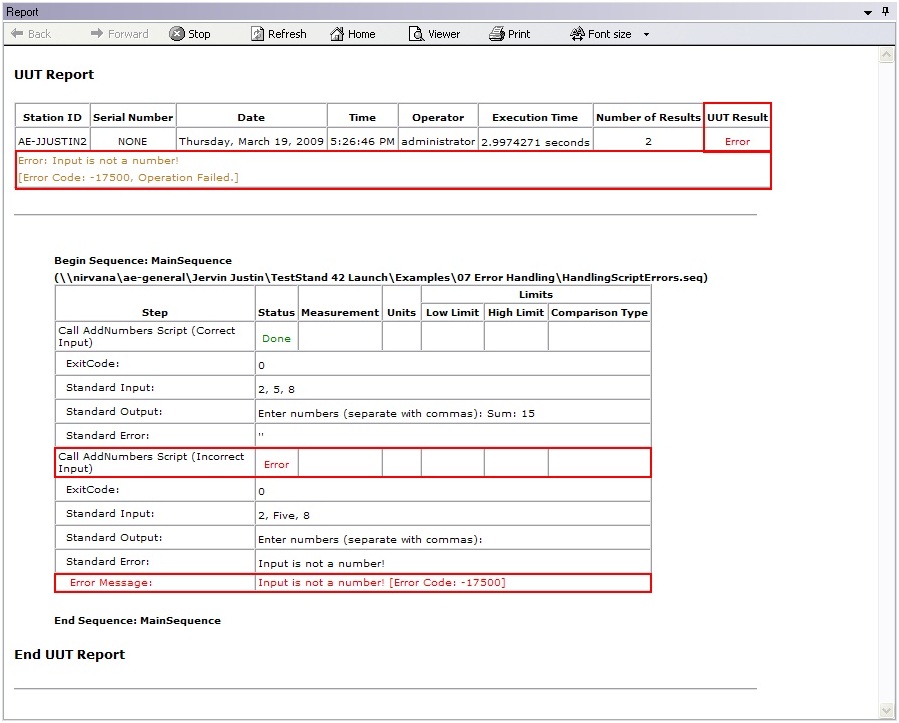
- Enable the Standard Error by switching the Error Destination dropdown to Store in Value/Property. Leave the default destination, Step.StdError.Text.
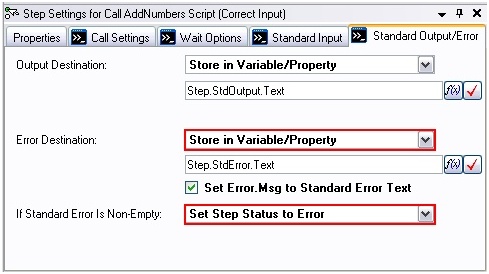
- Check the Set Error.Msg to Standard Error Test checkbox.
- Switch the If Standard Error is Non-Empty dropdown to Set Step Status to Error.
- On the Step Settings pane, switch to the Properties tab and select the Additional Results category.
- Click the Add Result from List button and add Standard Input, Standard Output and Standard Error.
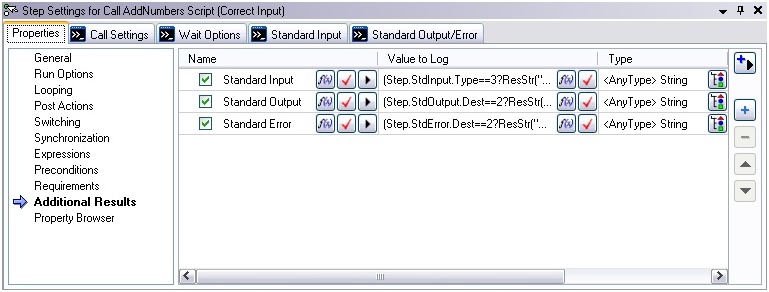
- Now create a copy of the step and insert it right after the original step. Name the copy “Call AddNumbers Script (Incorrect Input)”.Modify the Standard Input in this step to cause an error condition. For example: 2, Five, 8
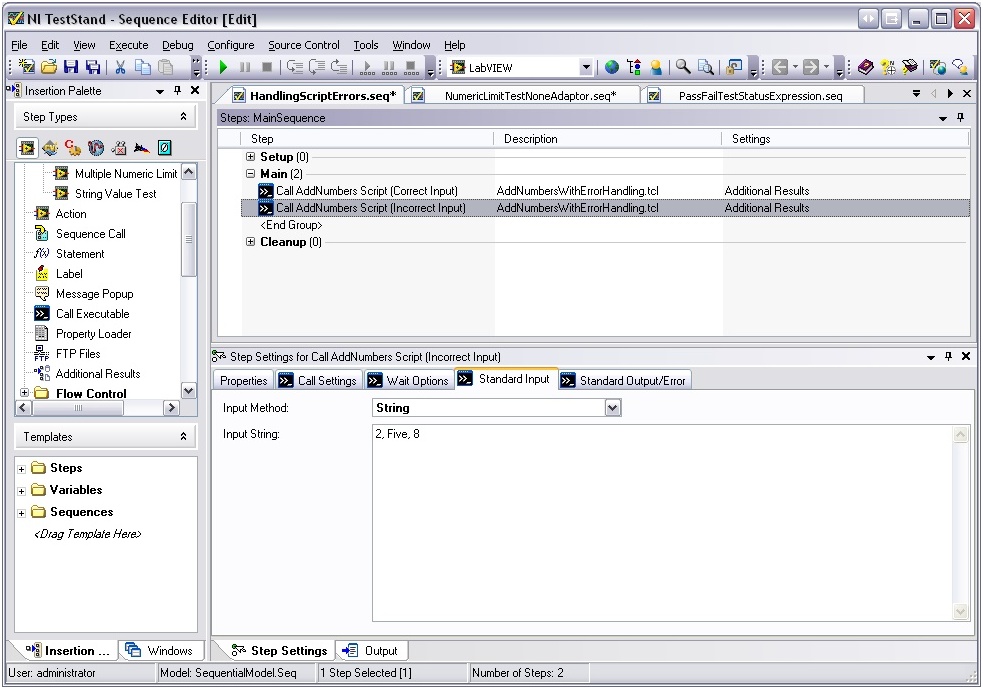
- Save the sequence file as HandlingScriptErrors.seq in the same folder as the script.
- Run your sequence file. Your report should look like the following screenshot: