Programmatically Set Scroll Bar Position in a Multicolumn Listbox or Tree Control

Updated Feb 27, 2026

Environment

Software

  • LabVIEW

How can I programmatically set the scroll bar position for the Multicolumn Listbox or Tree control?

The scroll bar position in the Multicolumn Listbox or Tree control is set by using the property node Top Left Visible Cell. The following steps outline the process for creating this property node. 

  1. Right-click the Multicolumn Listbox or Tree control and select Create >> Property Node >>Top Left Visible Cell.
  2. Right-click the Property Node and select Change to Write from the shortcut menu.
  3. Right-click the Property Node and select Create >> Constant from the shortcut menu.
  4. In the cluster constant that appears, enter the elements base on the description below.
    1. For the Multicolumn Listbox
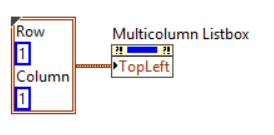
      • Row – The row index of the cell shown at the top‑left corner of the listbox.
      • Column – The column index of the cell shown at the top‑left corner of the listbox.
    2. For the Tree control
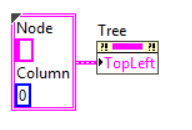
      • Node – The value displayed in the top‑left corner of the tree control.
      • Column – The index of the leftmost column currently visible in the tree control.

This is the example of Multicolumn Listbox and Tree control:


Note: This image is a LabVIEW snippet, which includes LabVIEW code that you can reuse in your project. To use a snippet, right-click the image, save it to your computer, and drag the file onto your LabVIEW diagram.


Result