Solution
There are two ways to modify the way a computer ID is generated, depending on the version of NI License Manager you have installed. In addition, there is a third way to achieve this programmatically.
- Prior to NI License Manager 4.0 you can force the ID generation of the computer ID using the disk serial number:
- Navigate to Start»Run and type in regedit to open the Windows registry tool
- If you are on a 32 bit machine, navigate to: HKEY_LOCAL_MACHINE\SOFTWARE\National Instruments\License Manager
- If you are on a 64 bit machine, navigate to: HKEY_LOCAL_MACHINE\SOFTWARE\Wow6432Node\National Instruments\License Manager
- Go to Edit»New»String Value
- Set the name of this key as DiskOnly
- Set the value of this key as True
The next time you open NI License Manager, the computer ID should now be permanently generated from the hard disk serial number.
- From NI License Manager 4.0 this function does not work, but you can achieve the same results using the following command in Windows Command Prompt:
- Open Windows Command Prompt
- Type in the following commands:
cd C:\Program Files (x86)\National Instruments\Shared\License Manager\
NILicensingCmd.exe /diskOnly True
You should see the DiskOnly set to "True" message as shown on the image below.
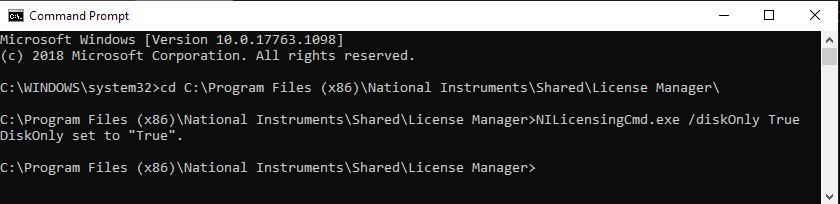
This will change the source of the ID to the disk serial number for both the NI License Manager and the generateComputerId.exe. Similarly, you can deactivate this option by setting the /diskOnly parameter False using the Command Prompt.
- The Computer ID generation can also be achieved programmatically using LabVIEW. If you want the ID to be consistent, you can use the DiskOnly parameter to make the ID to be always based on the disk serial.